
Use Copilot's "Explain This" in Outlook
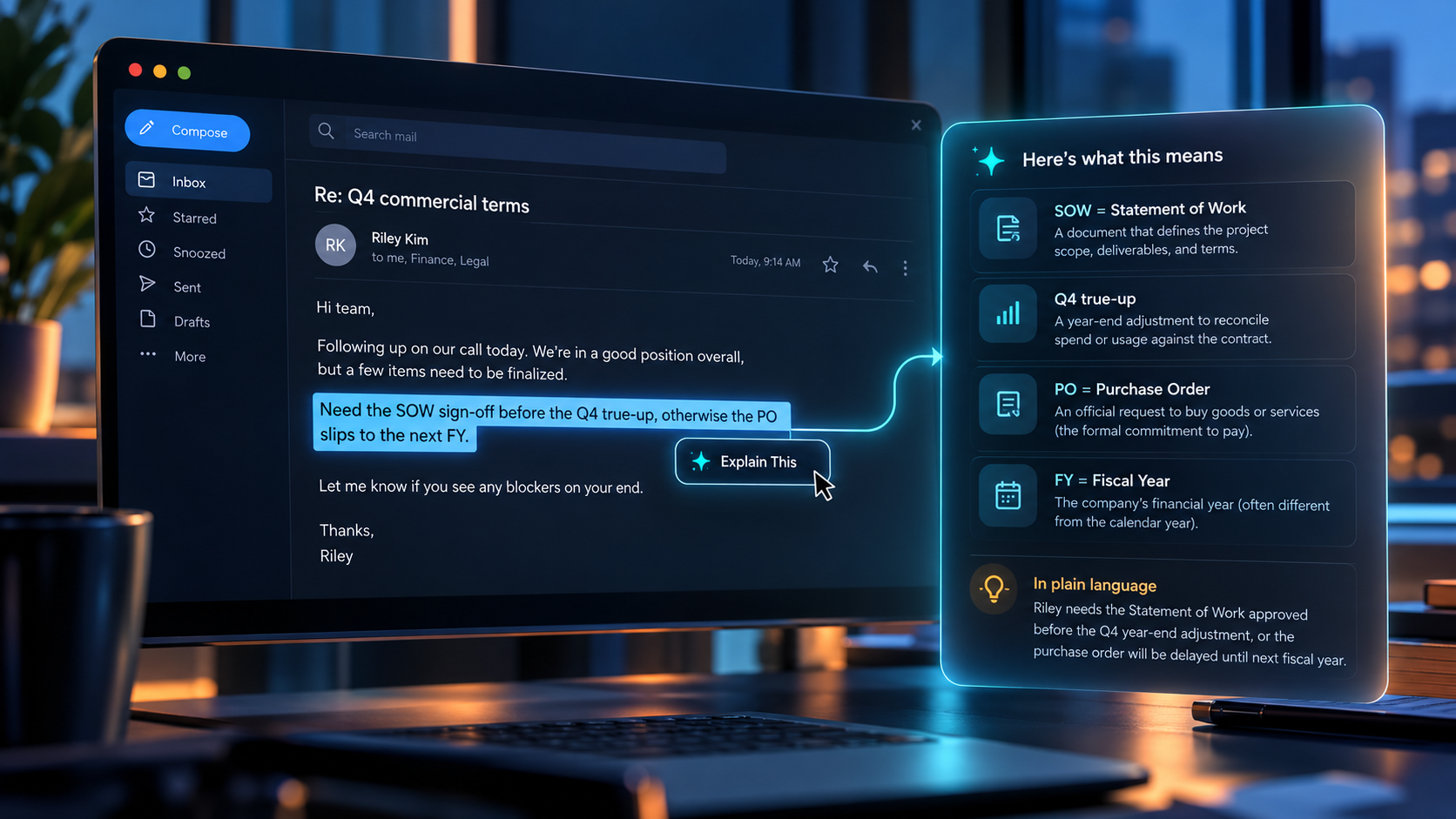
We all get emails like this one: "Need the SOW sign-off before the Q4 true-up, otherwise the PO slips to the next FY." If you're new to a team, a client, or a field, a single line like that can send you through five browser tabs. When a worked at Audible, there was an specific chapter on the onboarding process to understand the enterprise jargon and acronyms.
Microsoft is adding a small feature to classic Outlook for Windows that handles this directly. When you highlight text in an email, an Explain This button appears. Click it and Copilot explains the selection in context. You don't need an add-in, a separate chat window, or copy-pasting. The rollout is scheduled for early to late October 2026 (Microsoft 365 message center MC1311978).
How to use it well:
- Highlight only the confusing phrase or sentence, not the whole email. The explanation comes back tighter that way.
- Use it on acronyms, contract or finance terms (SOW, true-up, accrual), and technical shorthand from other departments.
- Read the explanation before you reply, so your answer is about the right thing.
If the button hasn't reached you yet, you can get the same result by pasting the line into Copilot (or ChatGPT/Claude) with this prompt:
"Explain this sentence like I'm new to the project. Define each acronym, then tell me in one line what the sender needs from me."
The last part of that prompt matters most. It turns an explanation into a next step.
Asking for an explanation before you answer is a ten-second habit that saves you from wrong replies, extra back-and-forth, and a bit of embarrassment.
References
Super Simple 365. (2026, September 2). User-initiated Copilot insights in classic Outlook for Windows. Super Simple 365. https://supersimple365.com/user-initiated-copilot-insights-in-classic-outlook-for-windows/
Microsoft. (2026, September 1). Classic Outlook for Windows: User-initiated insights with Copilot (MC1311978). Microsoft 365 Message Center Archive. https://mc.merill.net/message/MC1311978