
Copilot your outlook to boost your email
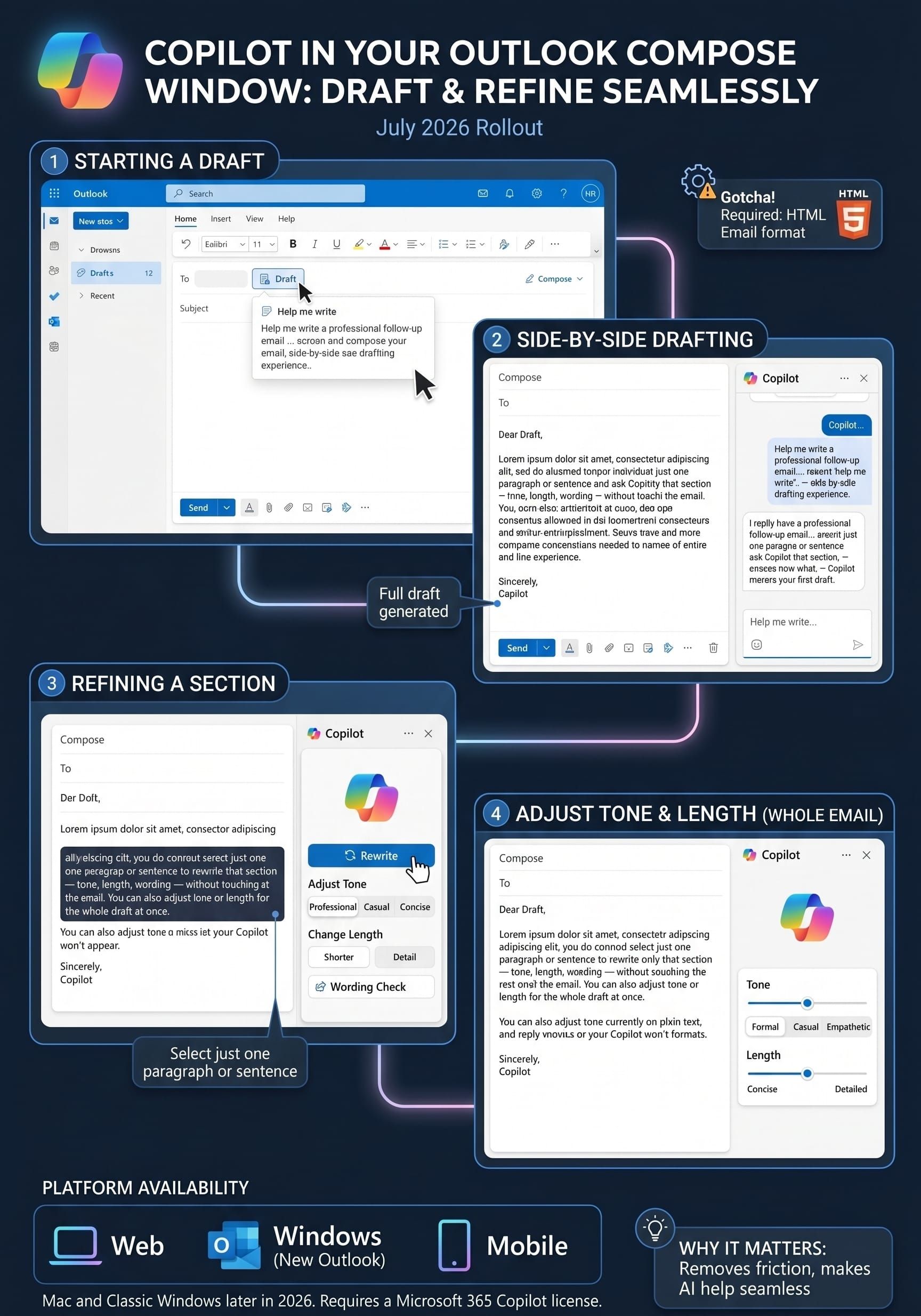
If you have Microsoft 365 Copilot, you no longer need to bounce between a separate chat panel and your email to get AI help writing. As of the July 2026 rollout, Copilot works directly inside the compose window itself or as Microsoft calls it a "side-by-side drafting experience."
Here's how to use it:
Starting a draft. In a new email, click the Copilot icon in the toolbar and choose "Draft," or just click the quick prompt "Help me write" (or "Help me reply" if you're responding to a thread). Describe what you need in plain language, just throw the ideas you have. Copilot may ask a clarifying question or two before it generates your first draft.
Refining without starting over. This is the part worth remembering: once you have a draft, you can select just one paragraph or sentence and ask Copilot to rewrite only that section, remember you can add specific tone, length, wording, without touching the rest of the email. You can also adjust tone or length for the whole draft at once.
One gotcha. The feature currently only works in HTML-formatted emails. If your account defaults to plain text, go to Settings > Mail > Compose and reply and switch formats, or Copilot won't appear.
Availability: Outlook on the web, new Outlook for Windows, and Outlook mobile now; Mac and Classic Outlook for Windows are rolling out later in 2026. Requires a Microsoft 365 Copilot license.
References: